Guide 1 of 8 · Channel · 6 steps
Open a channel: it is a folder
Start Kiju, name a channel, and see what the desk keeps of it: a folder of readable files on your Mac, and nothing on a server.
- At the end
- A channel open on your desk, and a folder on your Mac that you can read without Kiju.
- Before you start
- Kiju on a Mac (private beta, macOS).
- Nothing else: no account, no key. A model is needed only to write or to shoot.
Start on the welcome screen
Kiju opens on its title page. There is no account to create and nothing to sign in to. Two doors lead to a channel: Open a project folder for a channel you already have, New channel for a first one.
 (Open the full picture)
 (Open the full picture)
Once you have opened channels, a recent list under the buttons brings them back in one click. The line at the bottom of the screen says the rule: local-first, your folder, your keys, no account.
Name the channel
Click New channel. Two fields appear, a channel name and a tagline. The name also names the folder; the tagline is the line under the name on the channel page. Then press Create.
 (Open the full picture)
Pick where its folder lives
Kiju asks where the project folder should live, in your Mac’s own folder window. Pick a place (Documents, a synced drive, wherever you keep work) and press Create here. Kiju makes one folder there, named after the channel, and opens it. Letters, digits and dashes stay; spaces become dashes: “Wind-Up City” lives in Wind-Up-City.
Try it hereIllustration
Change the name, press Create, then Create here, and open the files the desk would write.
Behaves like the desk’s control. This page saves nothing and sends nothing.
Read the channel page
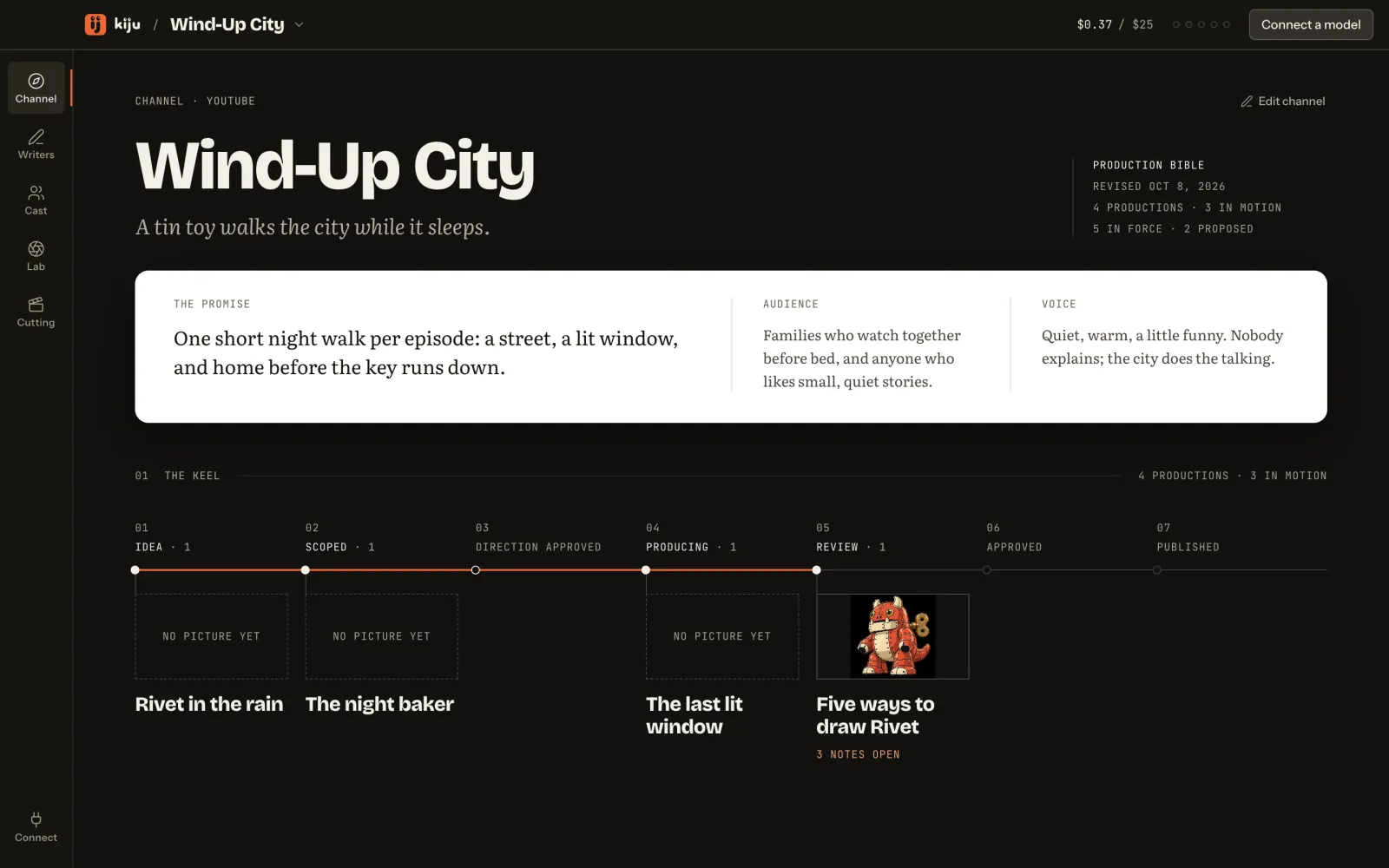
The channel opens on its page: the name and tagline, then three paragraphs on paper (the promise, the audience and the voice) that every writer reads before it writes. Fill them with Edit channel, then Save channel.
 (Open the full picture)
Below runs the keel: the seven stages a production moves along, from idea to published. Further down come the next decisions, the bible, the recent takes and the ledger. A new channel shows them empty; the sample channel already has four productions.
Look inside the folder
Everything the desk knows about the channel is in its folder, as files you can open in any text editor:
kiju.json: the channel (name, tagline, promise, audience, voice, destinations) and its budget.bible.json: the direction, approved, proposed and set aside, with the reasons.characters/,productions/,generations/: one file per character, per production, per take. A take’s file holds its provider, model, settings, cost and job id.journal.jsonl: one line per agent run, with what it cost. It appears with the first run.media/: the pictures, sounds and cuts.README.md: two lines saying what the folder is.
Your keys are not in it: they live in your Mac’s keychain. Copy the folder, back it up, put it under version control: it is the channel. In the Lab, Show in Finder opens it on a take’s file; in the cutting room, Reveal cut in Finder opens it on the cut.
Come back to it later
Kiju reopens the last channel when it starts. To change channel, click its name in the header: the menu lists the one open and the others, with Open a channel folder… and New channel….
 (Open the full picture)
A new channel made from there can Start from Wind-Up City’s bible, cast and voice. The macOS File menu has the same doors: New Channel…, Open Channel… and Open Recent.
When you want the crew to write or to shoot, Connect at the bottom of the rail holds your keys and the desk’s language (follow the Mac, English or French).
 (Open the full picture)