Guide 5 of 8 · Cast · 6 steps
A character has a look and a voice
In the Cast, a character is a card: a name, a role, a look written the way a model reads it, a personality, pictures and a voice. Your approval makes the look canon.
- At the end
- A character in the cast with a written look, a portrait and your approval: what the writers and every take read from.
- Before you start
- A channel open (guide 1).
- For a voice: ElevenLabs connected in Connect. For a proposal from the casting agent: a writers’ model.
Meet the cast
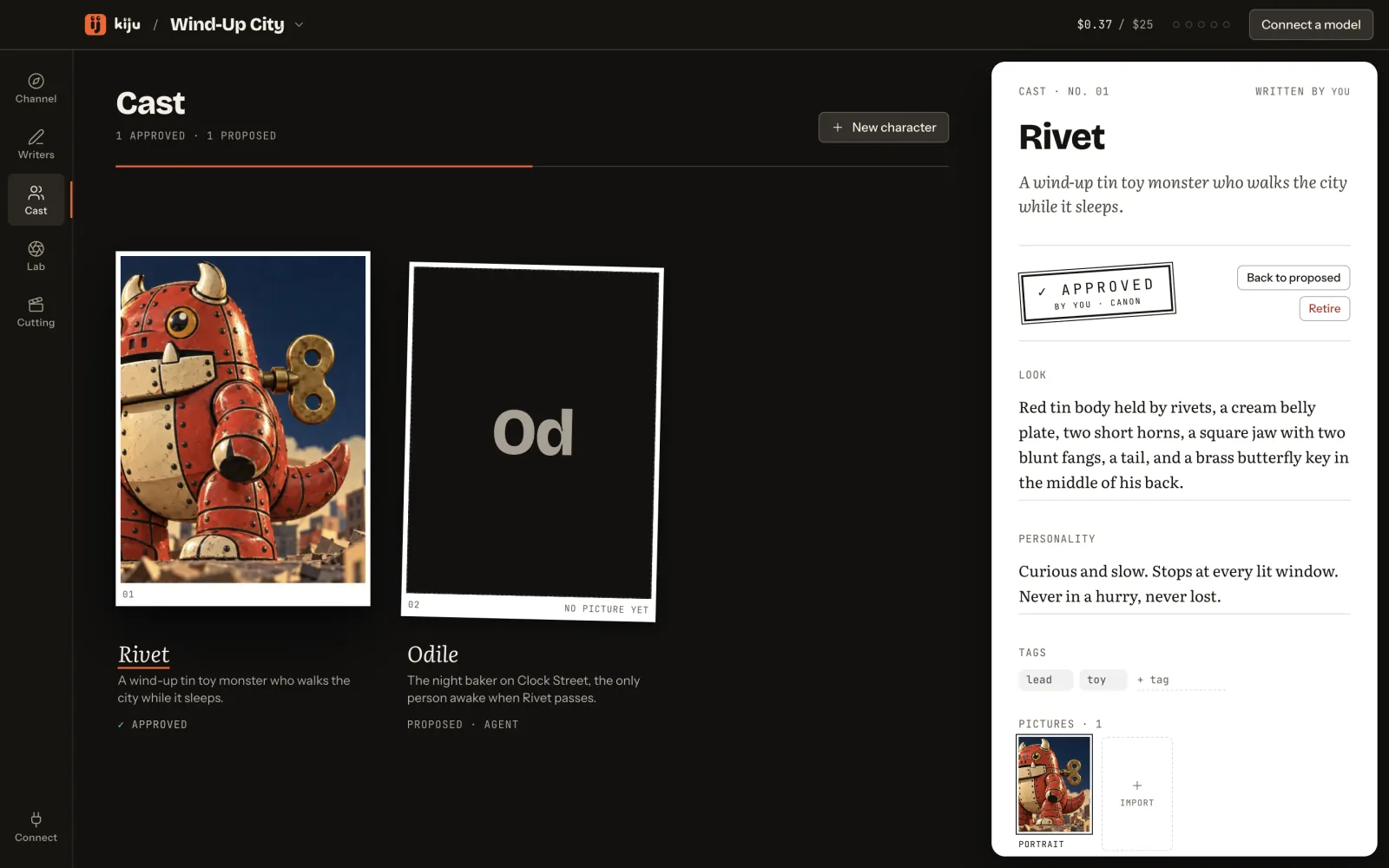
Open the Cast room. Each character lies on the floor as a print: its portrait, its name and role, and whether it is approved, proposed or retired. The count at the top says how much of the cast is approved.
 (Open the full picture)
Read a character’s card
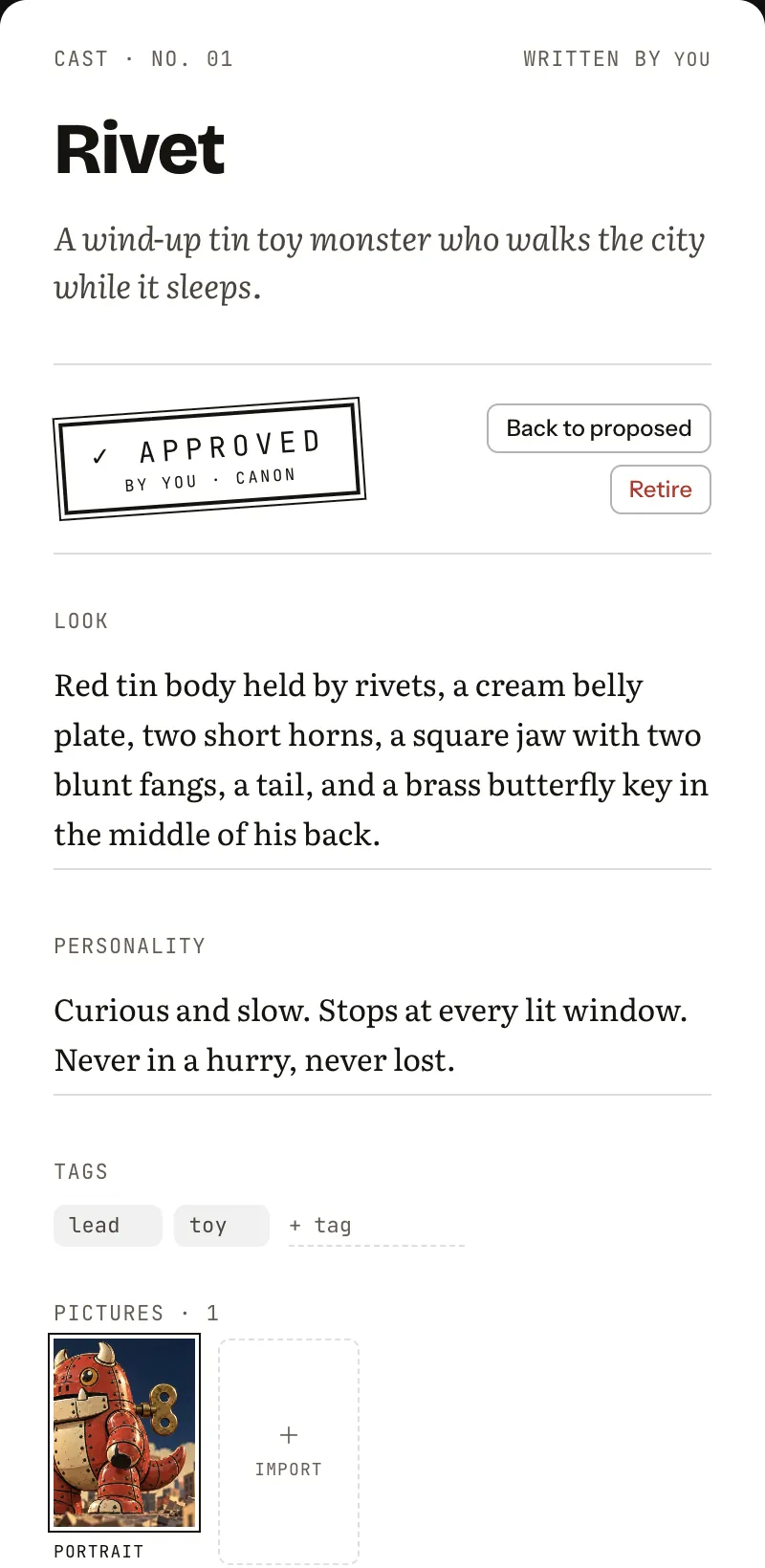
Select a print: its card opens on the right, on paper, with the stamp of its approval at the top.
 (Open the full picture)
Read it from the top. The look comes first: face, build, hair, wardrobe and distinctive details, written the way a model should read them. Then the personality, the tags, the pictures (the first is the portrait), the voice and the notes. Every field is edited in place.
Show the whole card
Give it a face and a voice
Give the character a picture. Import copies pictures from your Mac into the project, and Make portrait puts one first. Takes made in the Lab for this character wait on the card until you add them.
With no picture yet, press Generate reference sheet: it opens the Lab with a sheet prompt, and nothing is spent until you press Generate there.
 (Open the full picture)
The voice comes from your ElevenLabs account: pick one of your voices, then Hear it. Without the key the card asks you to connect ElevenLabs first. The sample channel has no key, and Rivet never speaks anyway: it is in the bible.
 (Open the full picture)
Approve the look
Odile was proposed by the casting agent. Her card says so, and explains what approving does: the writers and the director will cast from her look as written.
 (Open the full picture)
Press Approve. The stamp reads “By you · canon”.
 (Open the full picture)
Changed your mind? Back to proposed takes it back. Retire keeps the card on file, and the agents no longer write for that character.
Cast a new character
Press New character. A casting call opens: describe someone in a sentence or two, then press Propose a character, its price on the button.
 (Open the full picture)
The casting agent drafts a name, a look and a personality from the approved direction. Nothing joins the cast until you keep it: Keep as proposed puts the proposal on the floor, and you approve it later, in the cast.
Put the cast in a shot
In the Lab, the composer’s cast button (Add someone from the cast) lists the cast. A character with a picture comes in as a reference image. A character without one comes in as their written look, added to the prompt. The line under the prompt says what will leave your Mac.
Try it hereIllustration
Add Rivet, then Odile, and watch what goes into the shot and what leaves the Mac.
What leaves this Mac
- Your prompt → BytePlus ModelArk (Seedance 2.5)
Behaves like the desk’s control. This page saves nothing and sends nothing.